
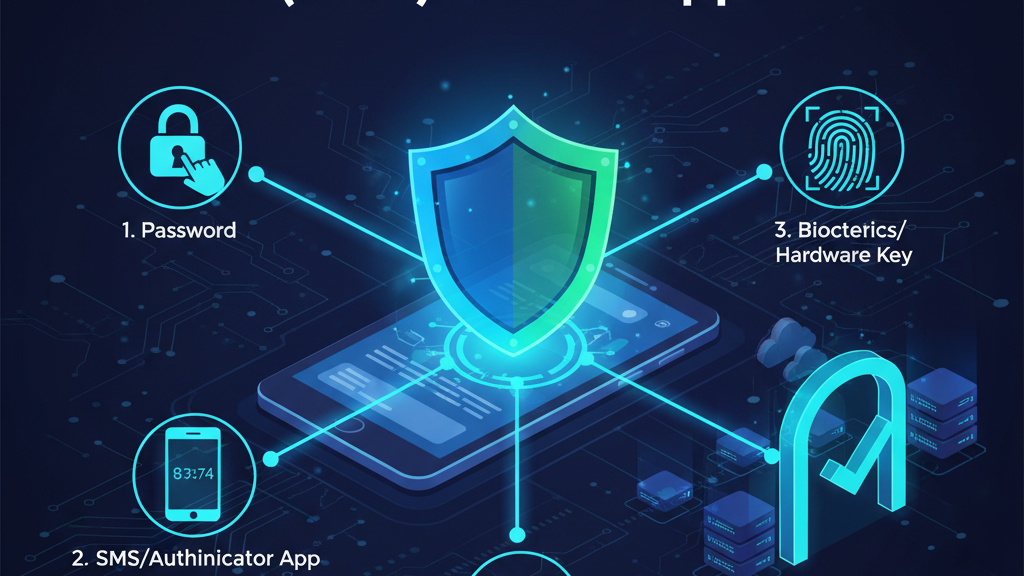
In an environment dominated by automated credential-stuffing attacks, credential harvesting, and AI-driven social engineering, relying solely on a password is no longer enough to secure your digital life. Studies consistently show that basic passwords—no matter how long or complex—can be leaked in third-party data breaches or intercepted via phishing sites.
Multi-Factor Authentication (MFA) serves as the single most effective barrier against unauthorized access. By requiring two or more distinct pieces of evidence before granting entry, MFA stops over 99% of automated account-takeover attacks.
The 3 Pillars of Multi-Factor Authentication
MFA works by combining different categories of authentication. To achieve true multi-factor security, a system must request factors from at least two of these three distinct pillars:
-
Something You Know (Knowledge): Information you memorize, such as a password, PIN, or security question.
-
Something You Have (Possession): A physical item in your control, such as a smartphone running an authenticator app, a hardware security key (FIDO2/WebAuthn), or a trusted security card.
-
Something You Are (Inherence): Unique biological traits, such as a fingerprint, facial scan (FaceID), or iris pattern.
MFA Security Hierarchy (Weakest to Strongest)

[ Weakest ]  SMS / Text Message & Voice Call Codes  ──► Vulnerable to SIM-swapping & interception
    │
    ▼
[ Better ]   Time-Based OTP (TOTP) Authenticator Apps  ► Resistant to SIM-swaps; vulnerable to phishing
    │
    ▼
[ Stronger ] Mobile Push Notifications with Number Matching ► Protects against MFA fatigue attacks
    │
    ▼
[ Strongest] Hardware Security Keys & Passkeys (FIDO2)   ► Cryptographically immune to phishing
MFA Methods Ranked: From Weakest to Strongest
Not all MFA methods offer the same level of protection. Choosing the right mechanism for your primary email, financial institutions, and password managers is critical:
1. SMS and Voice-Call Verification (Weakest)
Receiving a 6-digit code via text message or phone call is better than using a password alone, but it remains highly vulnerable. Attackers can execute SIM-swapping attacks—tricking your mobile carrier into porting your phone number to an attacker-controlled SIM card—allowing them to intercept your login codes remotely.
2. Time-Based One-Time Password (TOTP) Apps (Better)
Apps like Google Authenticator, Authy, or 1Password generate a temporary 6-digit code locally on your device every 30 seconds. Because these codes do not travel over cellular networks, they are completely immune to SIM-swapping attacks. However, users can still be tricked into typing TOTP codes into fake phishing websites.
3. Push Notifications with Number Matching (Stronger)
Instead of typing a code, a prompt pops up on your smartphone asking you to approve the login attempt. Modern enterprise systems use Number Matching, where the login screen displays a two-digit number that you must enter into the phone prompt. This prevents MFA Fatigue Attacks, where adversaries spam your phone with push requests until you accidentally tap “Approve.”
4. Hardware Security Keys & Passkeys / FIDO2 (Strongest)
Physical security devices (such as YubiKeys) and cryptographic Passkeys represent the gold standard of authentication. Using the open FIDO2/WebAuthn standard, your device verifies the domain name in the browser address bar before releasing credentials. If you are on a fake phishing domain, the key refuses to authenticate, making this method cryptographically phishing-resistant.
Best Practices for Personal Security
| Best Practice | Why It Matters | Implementation Action |
| Secure Primary Email First | Your email is the master key used to reset passwords for every other service | Enable hardware keys or a TOTP authenticator app on your email immediately |
| Ditch SMS Where Possible | Prevents SIM-swap identity theft and carrier-level interception | Swap SMS verification for an authenticator app in your security settings |
| Save Backup Recovery Keys | Prevents permanent account lockout if you lose or break your mobile phone | Print recovery codes and store them safely offline in a secure location |
| Use Passkeys for High-Value Apps | Eliminates passwords and authentication codes entirely via hardware-bound keys | Transition Google, Apple, Microsoft, and banking accounts to Passkeys |
| Never Share MFA Codes | No legitimate service, bank, or support representative will ever ask for your 6-digit code | Treat authentication codes like passwords; never type them into unverified prompts |
Taking Action Today
Upgrading your personal MFA setup is a one-time effort that provides permanent protection against digital identity theft. Start by securing your core digital foundation—your primary email, financial accounts, and password manager—using an authenticator app or hardware key. Moving away from text-message verification ensures your accounts remain secure, even if an attacker gains access to your phone number.